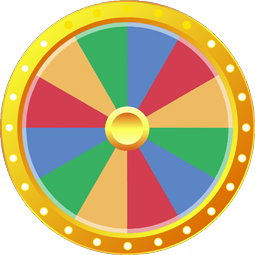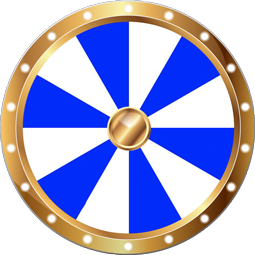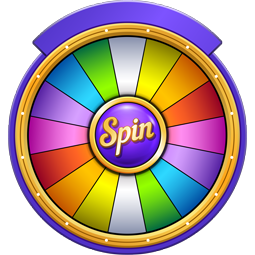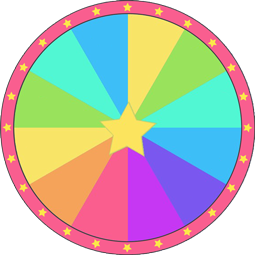
A multi-wheel spinner lets you run two, three or four random wheels side by side and spin them together. On Spin the Wheel each wheel keeps its own list, one button spins all of them, and the results appear in a single panel. For a classroom that means one spin can pick who answers and what they answer, without a second draw or a second argument.
This guide explains what the feature does, how to set it up in under a minute, and ten lesson ideas that use two or more wheels at the same time. Everything runs in the browser, needs no account, and works on the projector, a laptop or a phone.
What Is a Multi-Wheel Spinner?
A normal spinner wheel answers one question: which option wins. A multi-wheel spinner answers several linked questions at once. Wheel 1 might hold student names, Wheel 2 a set of discussion prompts, Wheel 3 a time limit. Spinning all three produces a complete instruction such as Maya, prompt 4, two minutes.
On Spin the Wheel the limits are simple:
- Up to four wheels on a desktop or laptop screen, and two wheels on a phone, so every wheel stays readable.
- Every wheel has its own list of options, its own name and its own colours. Editing one list never changes another.
- One Spin all wheels button starts every wheel together; each wheel stops on its own random result.
- The results open in one window, and the Results tab keeps every draw of the session with the wheel name in front of it.
You can also spin a single wheel on its own by clicking it, which is useful when only one part of the pairing needs a re-draw.
How to Set Up Two, Three or Four Wheels
- Open the spin the wheel homepage and fill the first wheel with your options. The Text Mode tab takes a pasted list, one option per line, and the wheel updates as you type.
- Click + Add another wheel under the list. A second wheel appears next to the first, and both shrink to share the space.
- Use the wheel tabs above the list (Wheel 1, Wheel 2, and so on) to switch between wheels and fill each one with its own options.
- Give each wheel a name in the box above it, for example Students, Questions or Minutes. The name is shown under the wheel and in every result.
- Repeat for a third or fourth wheel if the lesson needs it. Remove a wheel with the small cross on its tab.
- Press Spin all wheels. When the wheels stop, the results window lists one winner per wheel, and Spin all again runs the next round.

Two details save time on a school day. Create New Wheel clears every list but keeps the wheels, so you can reuse the same three-wheel layout for a new class. And the list panel is the only thing you edit: the wheels redraw themselves.
Ten Classroom Ideas That Use More Than One Wheel
The pattern behind all of these is the same: one wheel decides the person or group, the other wheels decide the task. Mix and match to fit the subject.
- Name and question. Wheel 1 holds student names, Wheel 2 holds review questions. Every spin gives a fair cold call with a fair question.
- Team and debate topic. Wheel 1 lists the groups, Wheel 2 lists motions, Wheel 3 decides for or against. Nobody can claim the easy side was handed out on purpose.
- Vocabulary and sentence pattern. Wheel 1 holds this week's words, Wheel 2 holds patterns such as a question, past tense or with an adjective. Students build a sentence from the pair.
- Mental maths operands. Two wheels numbered 1 to 12 give a multiplication fact; add a third wheel with the operators plus, minus and times for mixed practice.
- Story starters. Character, setting and problem on three wheels. A dragon, a supermarket and a lost key is a better prompt than a blank page.
- Reading passage and response task. Wheel 1 holds paragraph numbers, Wheel 2 holds tasks such as summarise, find the main idea or ask a question.
- Country and fact type. Wheel 1 lists countries, Wheel 2 lists capital, continent, language or flag colour for a quick geography round.
- Group roles. Wheel 1 lists names, Wheel 2 lists roles such as leader, recorder, timekeeper and presenter. Spin once per group and the roles are settled.
- Science variables. Wheel 1 holds materials, Wheel 2 holds conditions. Each pair becomes a small prediction to test or discuss.
- Reward and helper. Wheel 1 picks the classroom job, Wheel 2 picks the helper. Turn on the option that removes a winner after each spin so every student gets a turn before anyone repeats.

Is the Draw Fair When Several Wheels Spin Together?
Yes. Each wheel is an independent draw. Every option on a wheel gets a slice of exactly the same size, the stopping point comes from the browser's cryptographic random number generator, and the wheel keeps no memory of earlier spins. Spinning four wheels at once does not link their results in any way.
Two consequences follow. Repeats are normal, so the same student can be picked twice in a row; if that is a problem for the activity, switch on remove the winner after each spin for that wheel. And the number of options changes the odds in the obvious way: a wheel with four tasks lands on each task about a quarter of the time, whatever the other wheels do.
Tips for Using Multi-Wheels in a Lesson
- Project it. The full screen button enlarges the wheels for the whiteboard, and the sound toggle keeps the ticking quiet during exams or silent work.
- Prepare lists in advance. Paste each class list into Text Mode, then save the wheel in your browser or account so it loads with the wheels already in place. The guide to making a spin wheel covers saving and importing spreadsheets.
- Keep the record. The Results tab lists every draw of the session with its wheel name, which is handy for showing that turns were shared fairly.
- Share a single result. For one-wheel draws, the result window has a share menu that copies a result link, posts it to social media or saves the result as an image for a slide or a message to parents.
- Teach online. The streaming and OBS guide shows how to put a wheel on a live stream or a recorded lesson, and the embed tool places a wheel inside a class website.
- Start from a ready-made wheel. The education wheels collection has classroom spinners you can copy and adapt.
Beyond the Classroom
The same pairing logic works wherever two decisions belong together. A raffle can draw a prize and a winner at the same time. A workshop icebreaker can pair a participant with a question. A family game night can pick a game and who goes first. When the second decision is a simple yes or no, a yes or no wheel next to a name wheel is enough.
Open the homepage, add a second wheel, and let one spin settle both questions.
Spin all the wheels and see who gets what.